The Cost Agent compares what you planned to spend (the RAB) with what you actually spent, item by item, and tells you early when something runs over. It reads one workbook. This guide shows how to set it up in three steps, with a picture of every screen.
- 1Get the templateChoose, preview, download. About 5 minutes.
- 2Fill in your projectThe RAB once; actual costs at every cut-off.
- 3Check, then sendAlready have your own workbook? Check it here.
Step 1 · Get the template
Choose a template below. Not sure? Take Project cost if you only need cost control, or Cost + Schedule (complete) if the Scheduler Agent will read the same workbook.
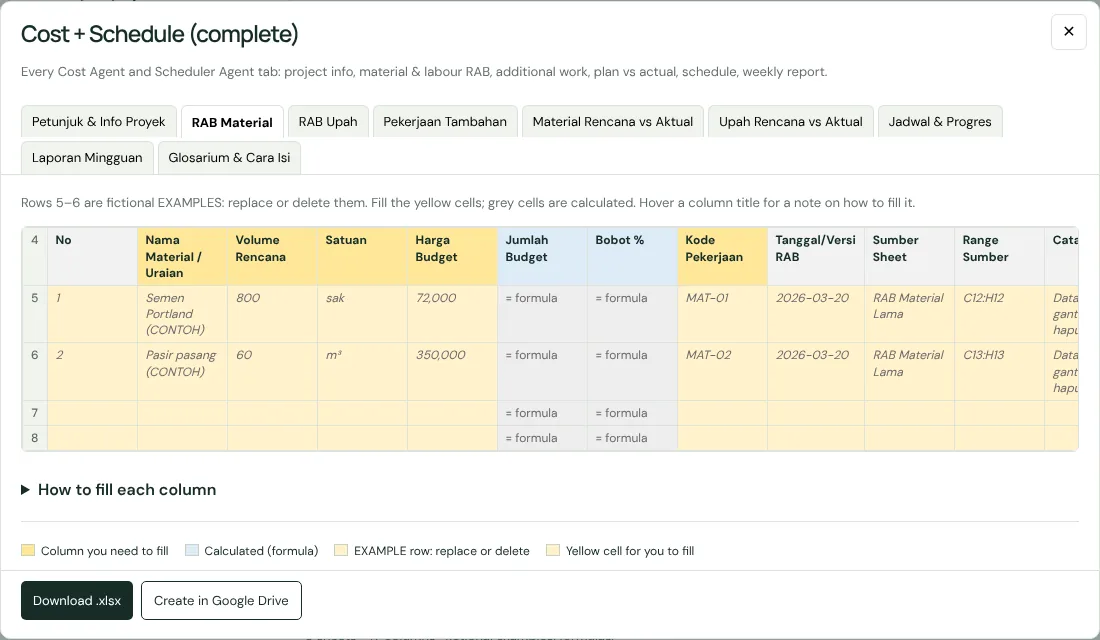
- Yellow title: a column you fill in.
- Blue title: calculated by a formula. Don’t type in it.
- Rows 5–6: fictional EXAMPLES. Replace or delete them.
Then press Download .xlsx (open it in Excel, or upload it to Google Drive) or Create in Google Drive (sign in with your Google account).
Step 2 · Fill in your project
Fill the tabs in this order. The first four are filled once, from the approved RAB; the last two are updated at every cut-off (usually weekly).
2a · Petunjuk & Info Proyek
Project details, once at the start. One label per row. Type the value in column B. Labels marked Wajib? = Ya (required) must be filled.
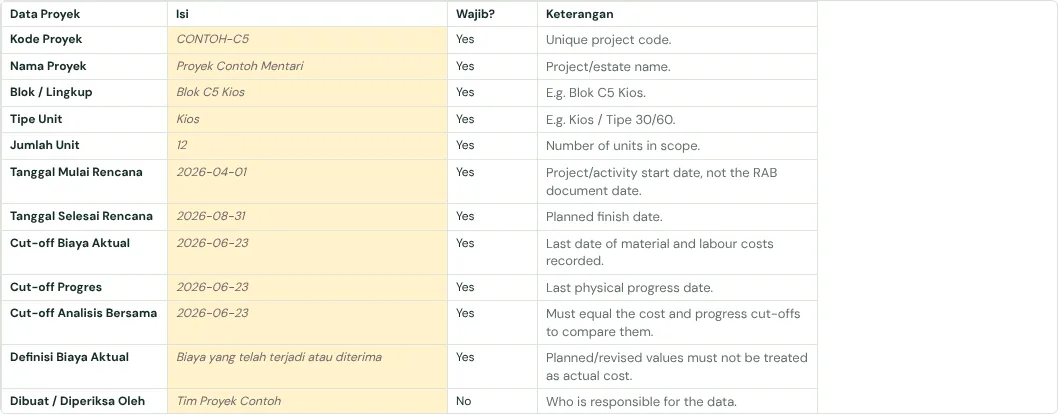
- Project code, name, block or scope, unit type, number of units
- Planned start and planned finish
- The cut-off dates: the last day the report covers, for cost, for progress and for the joint analysis
Common mistake: Use the same cut-off date for cost and progress, so the agent compares the same week.
2b · RAB Material
The material budget from the approved RAB. Filled once. One row per material.
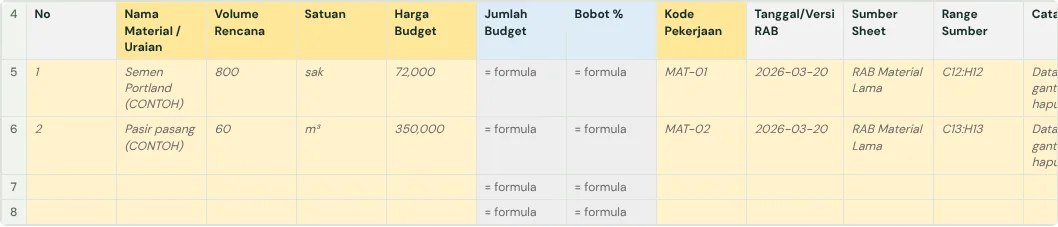
- Material name, planned quantity, unit, budget price
- Kode Pekerjaan (work code): a short unique code such as MAT-01. The same code is used again in Material Rencana vs Aktual.
- Jumlah Budget and Bobot % (blue titles) are calculated: don’t type in them.
Common mistake: Don’t edit the RAB once it is approved. Record scope changes in Pekerjaan Tambahan instead.
2c · RAB Upah
The labour budget from the approved RAB. Filled once. One row per work item.

- Work item, planned quantity, unit, planned labour rate
- Kode Pekerjaan, for example UPH-01. The same code is used in Upah Rencana vs Aktual and in the schedule.
- Total Upah Rencana and Bobot % are calculated.
Common mistake: Quantity and unit must match the RAB: 12 units × Rp5,000,000, not 1 lump sum.
2d · Pekerjaan Tambahan
Work outside the original RAB (variation orders). One row per change.
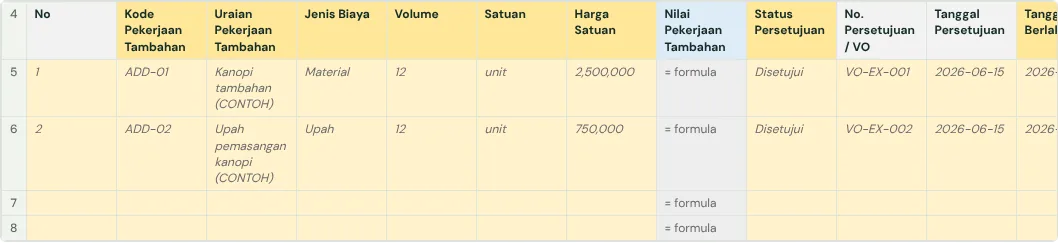
- Code (ADD-01), description, cost type (Material / Upah / Lainnya), quantity, unit, unit price
- Approval status: Disetujui (approved), Menunggu Persetujuan (waiting) or Ditolak (rejected). If approved, add the approval number and date.
- Effective date, cut-off, days added, and the evidence (VO number, drawing, handover)
Common mistake: A change still waiting for approval does not raise the budget yet.
2e · Material Rencana vs Aktual
Plan against reality, per material. Updated at every cut-off. One row per material: the plan from the RAB, then what actually arrived or was used.
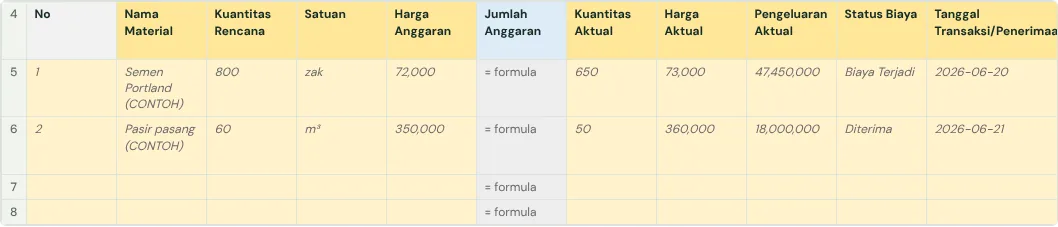
- Actual quantity, actual price, actual spend
- Status Biaya (cost status): incurred, received, stock only, committed…; transaction date and cut-off
- Kode Pekerjaan exactly as in RAB Material, and the evidence number (invoice, handover, stock slip)
Common mistake: If the code doesn’t match the RAB, the agent can’t compare plan and actual for that row.
2f · Upah Rencana vs Aktual
Plan against reality, per labour item. Updated at every opname (site measurement). One row per work item: the quantity finished according to the opname, and the real labour cost.

- Actual quantity, actual labour rate, actual labour total
- Cost status, opname date, cut-off
- Kode Pekerjaan as in RAB Upah, and the opname number
Common mistake: A worker’s cash advance (kasbon) is a prepayment, not a cost, until the work is measured.
Jadwal & Progres and Laporan Mingguan are covered in the weekly schedule guide.
Watch each column being filled
Choose a tab and press Play: each column is highlighted with a fictional example and how to fill it.
What is this tab? Name, block, number of units, start and finish dates, and the report cut-off date. Every agent reads the project details from here.
Fill column B (Isi) for every label. Labels with Wajib? = Ya are needed by the Cost and Scheduler agents. The values in column B are fictional EXAMPLES.
| Field / cell and what it means | Example entry |
|---|---|
| B5Kode ProyekA short code you choose for this project, for example its block and number. Use the same code on every tab and report. | CONTOH-C5 |
| B6Nama ProyekThe project or housing estate name as written in the contract. | Proyek Contoh Mentari |
| B7Blok / LingkupThe part of the project this workbook covers, for example one block or a range of unit numbers. | Blok C5 Kios |
| B8Tipe UnitThe type of building, for example Kiosk, Shophouse, or Type 36/60 (building area / land area). | Kios |
| B9Jumlah UnitNumber of units in scope. | 12 |
| B10Tanggal Mulai RencanaProject/activity start date, not the RAB document date. | 2026-04-01 |
| B11Tanggal Selesai RencanaThe date the work is planned to finish, from the contract or original schedule. The Scheduler Agent measures delay against it. | 2026-08-31 |
| B12Cut-off Biaya AktualLast date of material and labour costs recorded. | 2026-06-23 |
| B13Cut-off ProgresLast physical progress date. | 2026-06-23 |
| B14Cut-off Analisis BersamaMust equal the cost and progress cut-offs to compare them. | 2026-06-23 |
| B15Definisi Biaya AktualPlanned/revised values must not be treated as actual cost. | Biaya yang telah terjadi atau diterima |
| B16Dibuat / Diperiksa OlehWho is responsible for the data. | Tim Proyek Contoh |
| B17Terakhir DiperbaruiDate the workbook was updated. | 2026-06-23 |
| B18Catatan LingkupExclusions, scope changes, or purchases before installation. | DATA CONTOH FIKTIF: ganti semua nilai sebelum digunakan. |
| B19Nomor UnitUnit numbers/range in scope. | 1–12 |
| B20Lokasi ProyekProject location as in the original RAB. | Karang Joang, Balikpapan |
| B21Tahun ProyekYear the project runs. | 2026 |
| B22Status ProyekChoose: Rencana, Berjalan, Selesai, Ditunda or Dibatalkan. | Berjalan |
| B23Tanggal Persetujuan RABDate the baseline RAB was approved; not an actuals update date. | 2026-04-09 |
| B24Mata UangUse IDR for rupiah values. | IDR |
| B25Dasar Bobot ProgresSay whether progress is weighted by material+labour, labour only or material only. | Total Biaya Langsung |
| B26Disetujui OlehWho approved the reporting-period data. | Project Manager Contoh |
| B27Tanggal Persetujuan DataDate the cost and progress data were approved. | 2026-06-24 |
All worksheet instructions
Petunjuk & Info Proyek
Fill column B (Isi) for every label. Labels with Wajib? = Ya are needed by the Cost and Scheduler agents. The values in column B are fictional EXAMPLES.
- B5 Kode Proyek: A short code you choose for this project, for example its block and number. Use the same code on every tab and report.
- B6 Nama Proyek: The project or housing estate name as written in the contract.
- B7 Blok / Lingkup: The part of the project this workbook covers, for example one block or a range of unit numbers.
- B8 Tipe Unit: The type of building, for example Kiosk, Shophouse, or Type 36/60 (building area / land area).
- B9 Jumlah Unit: Number of units in scope.
- B10 Tanggal Mulai Rencana: Project/activity start date, not the RAB document date.
- B11 Tanggal Selesai Rencana: The date the work is planned to finish, from the contract or original schedule. The Scheduler Agent measures delay against it.
- B12 Cut-off Biaya Aktual: Last date of material and labour costs recorded.
- B13 Cut-off Progres: Last physical progress date.
- B14 Cut-off Analisis Bersama: Must equal the cost and progress cut-offs to compare them.
- B15 Definisi Biaya Aktual: Planned/revised values must not be treated as actual cost.
- B16 Dibuat / Diperiksa Oleh: Who is responsible for the data.
- B17 Terakhir Diperbarui: Date the workbook was updated.
- B18 Catatan Lingkup: Exclusions, scope changes, or purchases before installation.
- B19 Nomor Unit: Unit numbers/range in scope.
- B20 Lokasi Proyek: Project location as in the original RAB.
- B21 Tahun Proyek: Year the project runs.
- B22 Status Proyek: Choose: Rencana, Berjalan, Selesai, Ditunda or Dibatalkan.
- B23 Tanggal Persetujuan RAB: Date the baseline RAB was approved; not an actuals update date.
- B24 Mata Uang: Use IDR for rupiah values.
- B25 Dasar Bobot Progres: Say whether progress is weighted by material+labour, labour only or material only.
- B26 Disetujui Oleh: Who approved the reporting-period data.
- B27 Tanggal Persetujuan Data: Date the cost and progress data were approved.
RAB Material
Rows 5–6 are fictional EXAMPLES: replace or delete them. Fill the yellow cells; grey cells are calculated. Hover a column title for a note on how to fill it.
- B5 Nama Material / Uraian: Budget item or work item. Enter: Specific text. Example: Semen Portland
- C5 Volume Rencana: Quantity in the approved RAB. Enter: Zero or a positive number. Example: 800
- D5 Satuan: Unit of measure. Enter: unit, m, m², m³, kg, zak, batang, ls and the like. Example: sak
- E5 Harga Budget: Baseline price or rate per unit. Enter: Zero or a positive rupiah amount. Example: 72,000
- F5 Jumlah Budget: Calculated; don’t type here. Baseline value of the item. Enter: Volume × unit price; a rupiah amount. Formula: Volume Rencana × Harga Budget.
- G5 Bobot %: Calculated; don’t type here. Item share of the baseline value. Enter: 0%–100%; all items should total 100%. Formula: Amount ÷ total of all items.
- H5 Kode Pekerjaan: Links RAB, actual cost, schedule and progress. Enter: A unique, consistent text code. Example: MAT-01
- I5 Tanggal/Versi RAB: Approved baseline version. Enter: YYYY-MM-DD or a clear version code. Example: 2026-03-20 Note: recording it once in Petunjuk & Info Proyek → Tanggal Persetujuan RAB is enough; add this column only if rows come from different versions.
- J5 Sumber Sheet: Name of the old sheet the row came from, for tracing. Enter: Text; e.g. RAB Material Lama. Example: RAB Material Lama
- K5 Range Sumber: Cell range the row came from, for tracing. Enter: A cell range; e.g. C12:H12. Example: C12:H12
- L5 Catatan: Any extra remarks. Enter: Free text.
RAB Upah
Rows 5–6 are fictional EXAMPLES: replace or delete them. Fill the yellow cells; grey cells are calculated. Hover a column title for a note on how to fill it.
- B5 Uraian Pekerjaan: Budget item or work item. Enter: Specific text. Example: Pekerjaan pondasi
- C5 Volume Rencana: Quantity in the approved RAB. Enter: Zero or a positive number. Example: 12
- D5 Satuan: Unit of measure. Enter: unit, m, m², m³, kg, zak, batang, ls and the like. Example: unit
- E5 Harga Upah Rencana: Baseline price or rate per unit. Enter: Zero or a positive rupiah amount. Example: 5,000,000
- F5 Total Upah Rencana: Calculated; don’t type here. Baseline value of the item. Enter: Volume × unit price; a rupiah amount. Formula: Volume Rencana × Harga Upah Rencana.
- G5 Bobot %: Calculated; don’t type here. Item share of the baseline value. Enter: 0%–100%; all items should total 100%. Formula: Amount ÷ total of all items.
- H5 Kode Pekerjaan: Links RAB, actual cost, schedule and progress. Enter: A unique, consistent text code. Example: UPH-01
- I5 Tanggal/Versi RAB: Approved baseline version. Enter: YYYY-MM-DD or a clear version code. Example: 2026-03-20 Note: recording it once in Petunjuk & Info Proyek → Tanggal Persetujuan RAB is enough; add this column only if rows come from different versions.
- J5 Sumber Sheet: Name of the old sheet the row came from, for tracing. Enter: Text; e.g. RAB Material Lama. Example: RAB Upah Lama
- K5 Range Sumber: Cell range the row came from, for tracing. Enter: A cell range; e.g. C12:H12. Example: B12:H12
- L5 Catatan: Any extra remarks. Enter: Free text.
Pekerjaan Tambahan
Rows 5–6 are fictional EXAMPLES: replace or delete them. Fill the yellow cells; grey cells are calculated. Hover a column title for a note on how to fill it.
- B5 Kode Pekerjaan Tambahan: Unique code of the scope change / VO. Enter: Text; e.g. ADD-01. Example: ADD-01
- C5 Uraian Pekerjaan Tambahan: Work outside the original RAB. Enter: Specific text. Example: Kanopi tambahan
- D5 Jenis Biaya: Cost group of the addition. Enter: Material; Upah; Lainnya. Example: Material
- E5 Volume: Quantity of the added work. Enter: Zero or a positive number and a project unit. Example: 12
- F5 Satuan: Quantity of the added work. Enter: Zero or a positive number and a project unit. Example: unit
- G5 Harga Satuan: Price per unit of the added work. Enter: Zero or a positive rupiah amount. Example: 2,500,000
- H5 Nilai Pekerjaan Tambahan: Calculated; don’t type here. Total value of the change. Enter: Volume × unit price; calculated in the example. Formula: Volume × Harga Satuan.
- I5 Status Persetujuan: Approval state of the change. Enter: Disetujui; Menunggu Persetujuan; Ditolak. Example: Disetujui
- J5 No. Persetujuan / VO: Approval / variation document number. Enter: Document text or number; required when the status is Disetujui. (Conditional) Example: VO-EX-001
- K5 Tanggal Persetujuan: Date the change was approved. Enter: YYYY-MM-DD; required when the status is Disetujui. (Conditional) Example: 2026-06-15
- L5 Tanggal Berlaku: Date the addition takes effect. Enter: YYYY-MM-DD. Example: 2026-06-16
- M5 Cut-off: Date the addition is reported up to. Enter: YYYY-MM-DD; align with the analysis cut-off. Example: 2026-06-23
- N5 Dampak Durasi (hari): Days added or removed by the change. Enter: A whole number; 0 if no impact. Example: 3
- O5 Sumber / Bukti: Supporting document for the change. Enter: VO number, drawing, work instruction, BAST or where the evidence is. Example: Gambar & VO contoh
- P5 Catatan: Any extra remarks. Enter: Free text.
Material Rencana vs Aktual
Rows 5–6 are fictional EXAMPLES: replace or delete them. Fill the yellow cells; grey cells are calculated. Hover a column title for a note on how to fill it.
- B5 Nama Material: Budget item or work item. Enter: Specific text. Example: Semen Portland
- C5 Kuantitas Rencana: Quantity in the approved RAB. Enter: Zero or a positive number. Example: 800
- D5 Satuan: Unit of measure. Enter: unit, m, m², m³, kg, zak, batang, ls and the like. Example: zak
- E5 Harga Anggaran: Baseline price or rate per unit. Enter: Zero or a positive rupiah amount. Example: 72,000
- F5 Jumlah Anggaran: Calculated; don’t type here. Baseline value of the item. Enter: Volume × unit price; a rupiah amount. Formula: Kuantitas Rencana × Harga Anggaran.
- G5 Kuantitas Aktual: Quantity actually received or done. Enter: Zero or a positive number. Example: 650
- H5 Harga Aktual: Actual price or rate per unit. Enter: Zero or a positive rupiah amount. Example: 73,000
- I5 Pengeluaran Aktual: Actual cost of the item. Enter: A rupiah amount backed by evidence. Example: 47,450,000
- J5 Status Biaya: Financial classification of the actual figure. Enter: Biaya Terjadi; Diterima; Persediaan Saja/Terukur; Komitmen; Uang Muka; Sementara; Dikecualikan. Example: Biaya Terjadi
- K5 Tanggal Transaksi/Penerimaan: Date the cost occurred, goods arrived or work was measured. Enter: YYYY-MM-DD. Example: 2026-06-20
- L5 Cut-off: Last date the cost row covers. Enter: YYYY-MM-DD. Example: 2026-06-23
- M5 Dibeli Sebelum Pemasangan?: Explains material cost before it shows as physical progress. Enter: Ya; Tidak; Tidak Diketahui. Example: Ya
- N5 Kode Pekerjaan: Links RAB, actual cost, schedule and progress. Enter: A unique, consistent text code. Example: MAT-01
- O5 Bukti / No. Dokumen: Invoice, BAST, stock issue or opname reference. Enter: Document text or number. Example: INV-EX-001
- P5 Catatan: Any extra remarks. Enter: Free text.
Upah Rencana vs Aktual
Rows 5–6 are fictional EXAMPLES: replace or delete them. Fill the yellow cells; grey cells are calculated. Hover a column title for a note on how to fill it.
- B5 Uraian Pekerjaan: Budget item or work item. Enter: Specific text. Example: Pekerjaan pondasi
- C5 Volume Rencana: Quantity in the approved RAB. Enter: Zero or a positive number. Example: 12
- D5 Satuan: Unit of measure. Enter: unit, m, m², m³, kg, zak, batang, ls and the like. Example: unit
- E5 Harga Upah Rencana: Baseline price or rate per unit. Enter: Zero or a positive rupiah amount. Example: 5,000,000
- F5 Total Rencana: Calculated; don’t type here. Baseline value of the item. Enter: Volume × unit price; a rupiah amount. Formula: Volume Rencana × Harga Upah Rencana.
- G5 Volume Aktual: Quantity actually received or done. Enter: Zero or a positive number. Example: 12
- H5 Harga Upah Aktual: Actual price or rate per unit. Enter: Zero or a positive rupiah amount. Example: 5,000,000
- I5 Total Upah Aktual: Actual cost of the item. Enter: A rupiah amount backed by evidence. Example: 60,000,000
- J5 Status Biaya: Financial classification of the actual figure. Enter: Biaya Terjadi; Diterima; Persediaan Saja/Terukur; Komitmen; Uang Muka; Sementara; Dikecualikan. Example: Diterima
- K5 Tanggal Opname/Penerimaan: Date the cost occurred, goods arrived or work was measured. Enter: YYYY-MM-DD. Example: 2026-06-18
- L5 Cut-off: Last date the cost row covers. Enter: YYYY-MM-DD. Example: 2026-06-23
- M5 Kode Pekerjaan: Links RAB, actual cost, schedule and progress. Enter: A unique, consistent text code. Example: UPH-01
- N5 Bukti / No. Opname: Invoice, BAST, stock issue or opname reference. Enter: Document text or number. Example: OPN-EX-001
- O5 Catatan: Any extra remarks. Enter: Free text.
Step 3 · Already have your own workbook? Check it
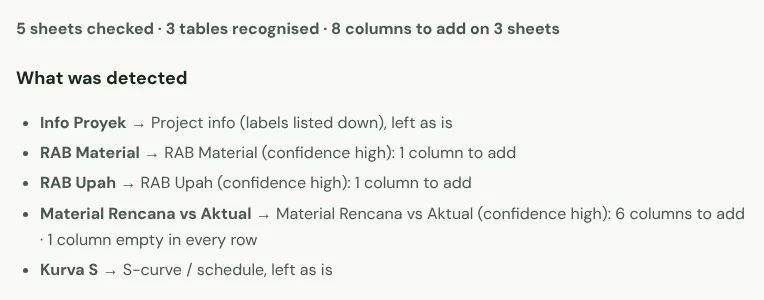
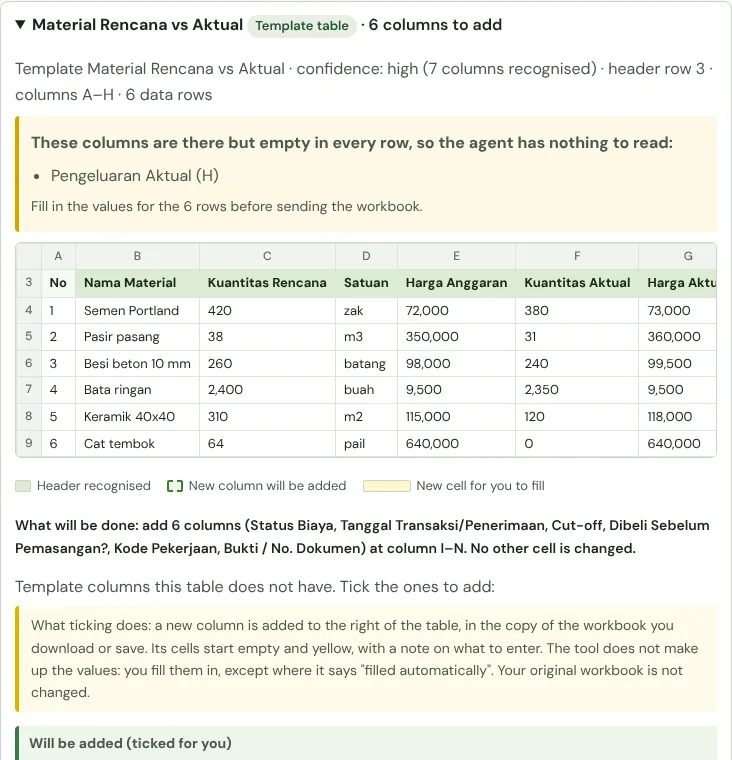
Does your team already keep its own RAB and cost records? No need to start again. Upload the workbook below: the tool matches your sheets to the template, shows what’s missing, and adds the columns the agent needs. Your values and formulas are not changed, and the file isn’t sent anywhere: it all runs in your browser.
Workbook in a mess? Follow the fix plan
A first workbook from site often mixes several blocks in one tab, writes dates and numbers as text, or lays out progress with the dates across the columns. The tool does more than match columns: for each sheet it says what it is, where its data should go, and what to fix. The easiest route: download a template in Step 1, then move the data across sheet by sheet following this plan.
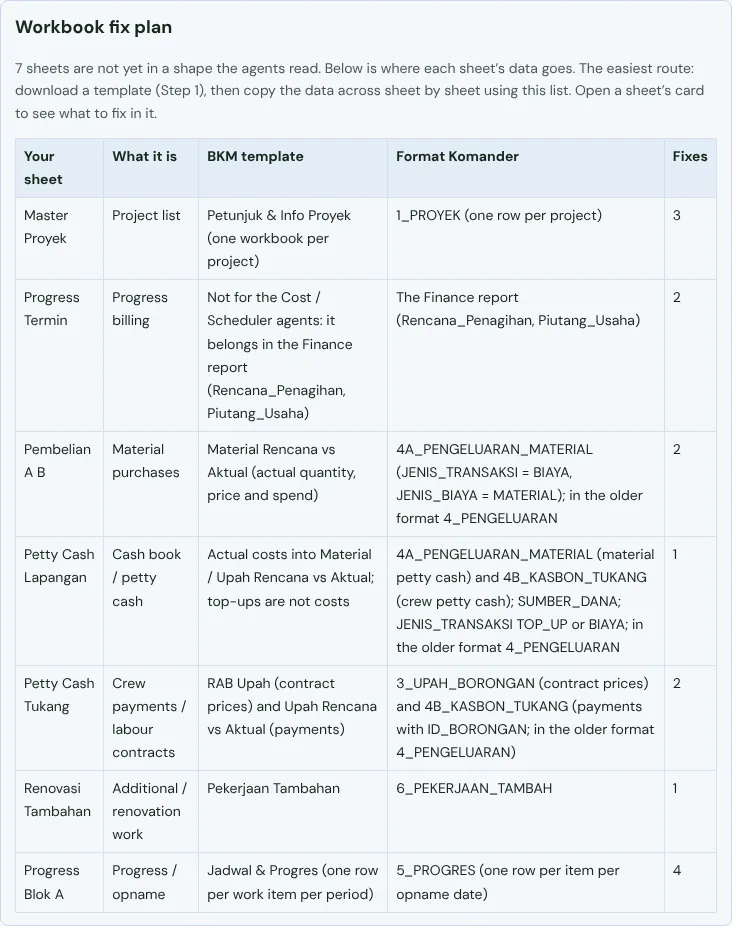
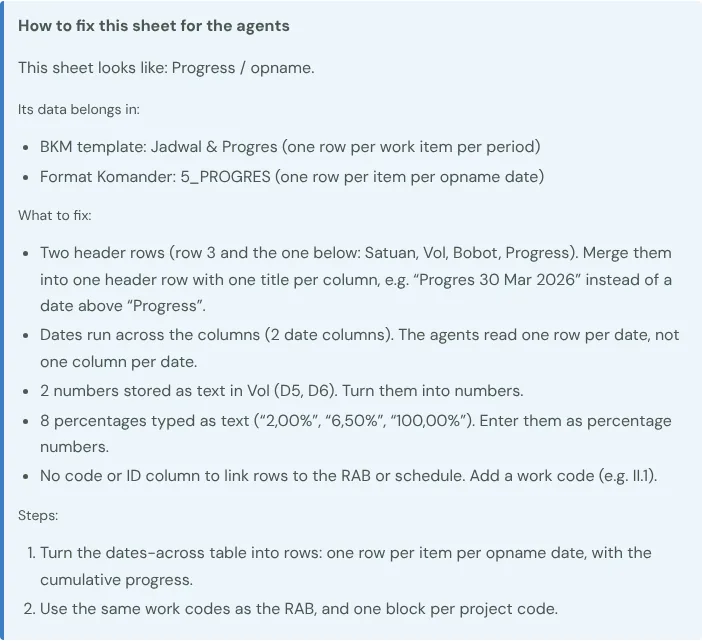
Complete your workbook
Upload one .xlsx file containing all sheets, or select a Google workbook. Then choose how to complete it. Data is processed in your browser. Google writes happen only when you choose Save.
No workbook yet? Start from a template. Using your own workbook? Check it here so the columns the agent needs are added.
2. Choose the workbook
Use Google Sheets
Connect your account and choose which workbooks to share. You can still upload local files below.
Whole-workbook report
Every sheet is checked automatically. Tables are recognised from their column headers, not just sheet names. Correct any wrong detection on each sheet.
What was detected
Details per sheet
Links between sheets from matching IDs
This report counts existing data; it does not invent missing amounts or dates and does not total costs. A link is proven only when every ID finds one unique match.
Optional: fill blank cells from another workbook
Choose a second workbook of the same report type. Each table is matched to the same template table in that workbook using the template’s ID (for example Proyek/Blok + Unit + No. Invoice). Only blank cells are filled, including ticked new columns; rows without a match or with repeated IDs are skipped, and source rows are never appended. A workbook in another format (an old RAB into the Format Komander, say) works too: rows are matched by item name, and you tick each suggestion before it is filled.
Save to Google Sheets
Only blank cells are filled. Avoid simultaneous edits while saving. Changes since loading will be checked again.
Review all Google changes
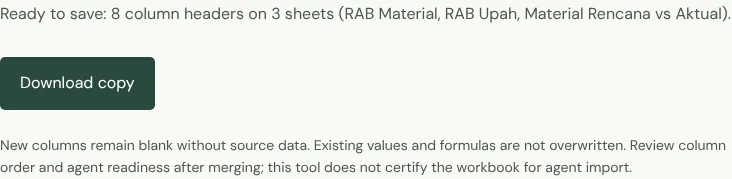
New columns remain blank without source data. Existing values and formulas are not overwritten. Review column order and agent readiness after merging; this tool does not certify the workbook for agent import.
How to open the result in Google Sheets
Download the copy, upload it to Google Drive, and open with Google Sheets. Choose File → Save as Google Sheets. Your original workbook stays unchanged. For a new workbook with all template tabs, formulas and validations, use Create my Google workbook above.
Before you send it to the agent
- The EXAMPLE rows are replaced or deleted.
- Every RAB row has a Kode Pekerjaan, and the same codes are used in Rencana vs Aktual.
- The cut-off date is the same on every tab.
- The newly added yellow columns are filled in.
- Actual costs have an evidence number (invoice, handover, opname).
- Changes not yet approved are marked Menunggu Persetujuan.
Workbook glossary · Opname and baseline filling guide
Ready to use the Komander agents on your projects?
When your workbook is complete, apply for a pilot: we help connect your project data to the Finance, Cost and Scheduler agents and review the first reports with you.
Send to melwani@komander.ai. Your workbook check result is included when there is one; the workbook itself is not sent.
Common questions
What is a construction cost report?
A report that compares the budget (RAB) with what was actually spent, per work item, for materials and labour. The difference shows which items are starting to run over budget.
How do I compare the budget with actual costs?
Give every RAB item a work code (for example II.1) and write the same code on every material purchase and crew payment. Add up the actual cost per code and compare it with the budget for that code.
What is a cost overrun and how can I spot it early?
An overrun is when a work item ends up costing more than its budget. Compare actual cost with physical progress: if 50% of the budget is spent but progress is only 30%, that item is likely to overrun.
Do crew advances (kasbon) count as project cost?
Yes, an advance is a labour-contract payment made early. Record it with its labour-contract ID so you can see what has been paid and what is left. A petty cash top-up is not a cost; it only moves money.
What if my budget combines material and labour prices?
That is accepted. One unit price per item can still be compared with actual cost. Split material and labour only if you want to see each difference separately.