The Finance Agent forecasts your project cash: what will come in, what has to be paid, and when the balance could drop below a safe level. It reads one workbook. This guide shows how to set it up in three steps, with a picture of every screen.
- 1Get the templateChoose, preview, download. About 5 minutes.
- 2Fill in your figuresPolicies once; balances, receivables and payables at every as-of date.
- 3Check, then sendExported from your accounting system? Check it here.
Step 1 · Get the template
Choose Finance (complete) for every tab. Only need part of it? Cash & expenses, Receivables & billing and Payables & purchasing hold the tabs for one area only.
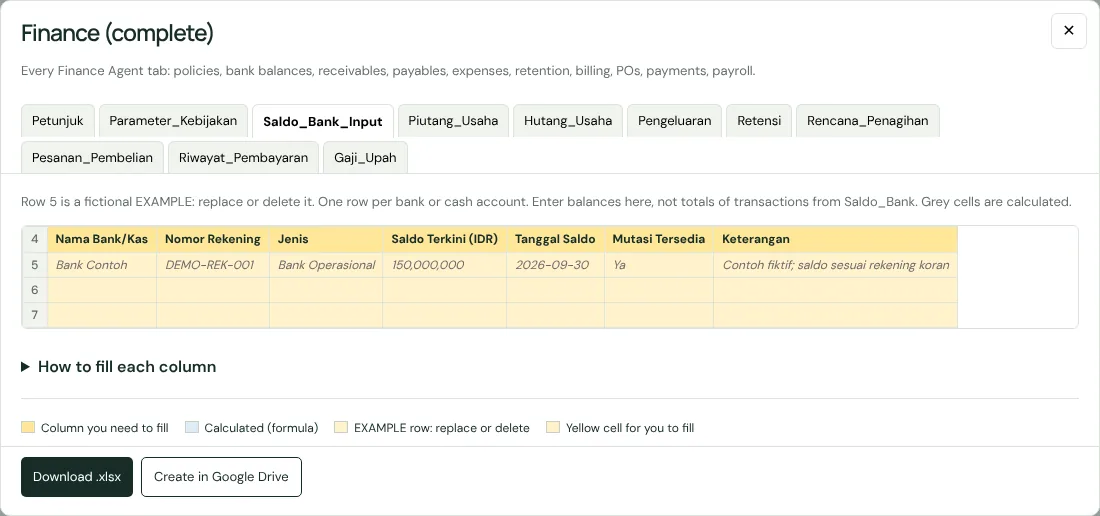
- Yellow title: a column you fill in.
- Blue title: calculated by a formula. Don’t type in it.
- Row 5: a fictional EXAMPLE. Replace or delete it.
Then press Download .xlsx (open it in Excel, or upload it to Google Drive) or Create in Google Drive (sign in with your Google account).
Prefer the full original Finance Agent workbook, with its review tabs? Make a copy in Google ↗
Step 2 · Fill in your figures
Every figure is measured at one as-of date (for example, month end). Fill the tabs in this order. Policies are filled once; the other tabs are updated at every new as-of date.
Once, at the start
1 · Parameter_Kebijakan
Your company’s cash rules: the minimum balance, how far ahead to forecast, standard terms, and the as-of date.
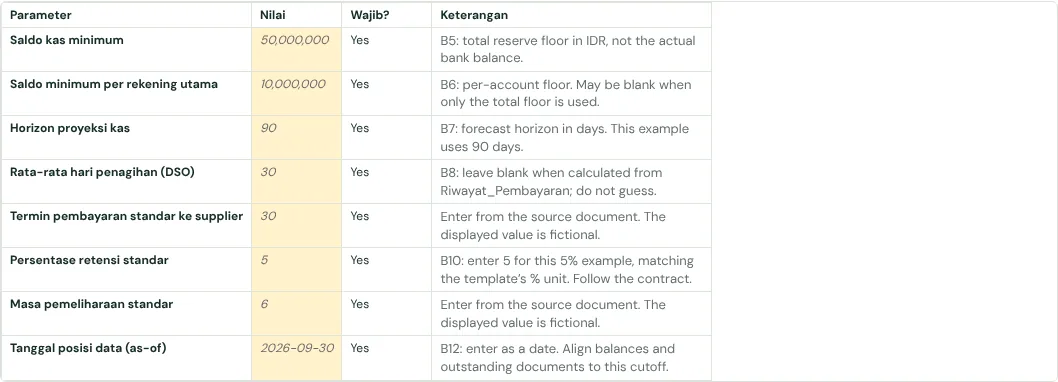
- Minimum cash balance (Rp) and the minimum per main account
- Forecast horizon (days), standard supplier terms (days), standard retention %
- As-of date: the date every balance and outstanding amount is measured at
Common mistake: Enter only approved policies. Leave undecided ones blank; don’t guess.
Cash today
2 · Saldo_Bank_Input
One row per bank or cash account, with its balance on the as-of date.

- Bank or cash name, account number, type (operating bank, petty cash…)
- Current balance as a number (150000000, not "Rp150,000,000") and the balance date
- Mutasi Tersedia: Ya if the bank statement is available
Common mistake: Enter one balance per account, not a list of transactions. Keep bank statements on a separate sheet.
Money coming in
3 · Piutang_Usaha
Invoices to buyers that are not fully paid. One invoice per row.

- Project or block, unit, buyer, invoice number
- Invoice date, due date, expected receipt date
- Invoice amount and amount paid; the outstanding amount is calculated
Common mistake: One project per row. Don’t combine several projects in one invoice row.
4 · Riwayat_Pembayaran
Payments that actually happened, in and out.

- Arah (direction): Masuk (in, from a buyer) or Keluar (out, to a supplier)
- The invoice or bill number exactly as in Piutang_Usaha or Hutang_Usaha
- Payment date, amount paid, method, account
Common mistake: A number that differs by one character means the payment can’t be matched to its invoice.
5 · Rencana_Penagihan
Progress billings still to come: planned money in.

- Project, billing or handover number, progress %, planned billing date
- Status: Rencana (not yet billed) or Sudah Ditagih (billed)
- Gross amount, VAT, retention; the net amount is calculated
Common mistake: A billed termin also appears in Piutang_Usaha: use the same number so it isn’t counted twice.
6 · Retensi
Money the client holds back until the maintenance period ends.

- Project, client or bank, contract or handover number
- Contract value and retention %; the amount held is calculated
- Expected release date and the release conditions
Common mistake: Retention held is not cash yet. Don’t include it in Saldo_Bank_Input.
Money going out
7 · Hutang_Usaha
Supplier bills not fully paid. One bill and one project per row.

- Project, supplier, bill number
- Status: Posted (recorded), Draft, or Dikecualikan (excluded)
- Bill date, due date, planned payment date, amount and amount paid
Common mistake: Don’t change Draft to Posted just to look complete.
8 · Pesanan_Pembelian
Purchase orders placed but not yet (fully) billed by the supplier.

- Project, supplier, PO number, order date, payment terms (days)
- Expected bill date and expected payment date
- PO value and amount billed; the remaining commitment is calculated
Common mistake: The billed part of a PO is in Hutang_Usaha: only the rest counts here.
9 · Pengeluaran
Operating expenses, from their receipts.

- Date, category, description, project
- Amount as a number (1500000, not "Rp1,500,000")
- Cost type (fixed/variable) and status: Lunas (paid) or Belum (not yet)
Common mistake: Wages already in Gaji_Upah must not be entered here again.
10 · Gaji_Upah
Optional: monthly wages, when they are not in Pengeluaran.

- Month, project, number of workers
- Gross wages and deductions; net wages are calculated
- Payment date
Common mistake: Use the same period for headcount and wage amounts.
Watch each column being filled
Choose a tab and press Play: each column is highlighted with a fictional example and how to fill it.
What is this tab? The money rules management has agreed, such as the minimum cash balance and how many days you take to pay suppliers. The Finance Agent uses these numbers as limits when it warns about low cash or late payments.
Illustrative management decisions. Enter only approved policies; leave undecided values blank. These example figures are not policy recommendations.
| Field / cell and what it means | Example entry |
|---|---|
| B5Saldo kas minimumB5: total reserve floor in IDR, not the actual bank balance. | 50,000,000 |
| B6Saldo minimum per rekening utamaB6: per-account floor. May be blank when only the total floor is used. | 10,000,000 |
| B7Horizon proyeksi kasB7: forecast horizon in days. This example uses 90 days. | 90 |
| B8Rata-rata hari penagihan (DSO)B8: leave blank when calculated from Riwayat_Pembayaran; do not guess. | 30 |
| B9Termin pembayaran standar ke supplierHow many days you usually take to pay a supplier after the bill arrives, for example 30. The agent uses it when a bill has no due date. | 30 |
| B10Persentase retensi standarB10: enter 5 for this 5% example, matching the template’s % unit. Follow the contract. | 5 |
| B11Masa pemeliharaan standarThe maintenance period in months, for example 6. Retention is usually released after it. | 6 |
| B12Tanggal posisi data (as-of)B12: enter as a date. Align balances and outstanding documents to this cutoff. | 2026-09-30 |
All worksheet instructions
Parameter_Kebijakan
Illustrative management decisions. Enter only approved policies; leave undecided values blank. These example figures are not policy recommendations.
- B5 Saldo kas minimum: B5: total reserve floor in IDR, not the actual bank balance.
- B6 Saldo minimum per rekening utama: B6: per-account floor. May be blank when only the total floor is used.
- B7 Horizon proyeksi kas: B7: forecast horizon in days. This example uses 90 days.
- B8 Rata-rata hari penagihan (DSO): B8: leave blank when calculated from Riwayat_Pembayaran; do not guess.
- B9 Termin pembayaran standar ke supplier: How many days you usually take to pay a supplier after the bill arrives, for example 30. The agent uses it when a bill has no due date.
- B10 Persentase retensi standar: B10: enter 5 for this 5% example, matching the template’s % unit. Follow the contract.
- B11 Masa pemeliharaan standar: The maintenance period in months, for example 6. Retention is usually released after it.
- B12 Tanggal posisi data (as-of): B12: enter as a date. Align balances and outstanding documents to this cutoff.
Saldo_Bank_Input
Row 5 is a fictional EXAMPLE: replace or delete it. One row per bank or cash account. Enter balances here, not totals of transactions from Saldo_Bank. Grey cells are calculated.
- A5 Nama Bank/Kas: The bank account or cash box name, for example "BCA Operations" or "Site petty cash". One row per account.
- B5 Nomor Rekening: Store account numbers as text to preserve leading zeros. This ID is fictional. Example: DEMO-REK-001
- C5 Jenis: Distinguish Bank Operasional from Kas Kecil. Use an available workbook category. Example: Bank Operasional
- D5 Saldo Terkini (IDR): Enter 150000000 as a number without Rp or grouping separators. Keep genuine zero and negative balances. Example: 150000000
- E5 Tanggal Saldo: Use the statement or cash-count date, not the upload date. Example: 30/09/2026
- F5 Mutasi Tersedia: State whether transaction history is available; follow the workbook choices if provided. Example: Ya
- G5 Keterangan: Extra notes that help explain the row, for example a confirmation status or the reason for a change. May be blank.
Piutang_Usaha
Row 5 is a fictional EXAMPLE: replace or delete it. One outstanding invoice per row. Complete all fields, not only amounts. Match receipts against Riwayat_Pembayaran. Grey cells are calculated.
- A5 Proyek/Blok: Select one project from the available dropdown. Do not combine projects. Example: E2
- B5 Unit: The house or kiosk unit number involved, for example C4-07. Leave blank when it applies to the whole block.
- C5 Nama Pembeli: The buyer or client being billed, exactly as on the invoice.
- D5 No. Invoice: The invoice number links to receipts. Use its unique source reference. Example: DEMO-AR-001
- E5 Tanggal Invoice: The date the invoice was issued, entered as a date.
- F5 Tanggal Jatuh Tempo: The payment deadline on the invoice or bill. The agent flags anything past this date.
- G5 Perkiraan Tanggal Terima: Expected receipt date should be supported by confirmation, not automatically copied from the due date. Example: 07/10/2026
- H5 Nilai Invoice (IDR): The full invoice amount in rupiah, as a number without dots or "Rp".
- I5 Sudah Dibayar (IDR): Enter receipts already received and matched to this invoice. Example: 40000000
- J5 Sisa Belum Dibayar (IDR): Calculated; don’t type here. Check Nilai Invoice (IDR) − Sudah Dibayar (IDR) = 60000000. Preserve any existing formula; reconcile manually entered balances.
- K5 Keterangan: Extra notes that help explain the row, for example a confirmation status or the reason for a change. May be blank.
Riwayat_Pembayaran
Row 5 is a fictional EXAMPLE: replace or delete it. Record actual payments. Masuk means receipts; Keluar means outgoing payments. Link the correct source document. Grey cells are calculated.
- A5 Arah: Select Masuk or Keluar from the cash direction; do not infer it only from the amount sign. Example: Masuk
- B5 Proyek/Blok: The project or block this row belongs to, for example C4. One row is for one project only.
- C5 Unit: The house or kiosk unit number involved, for example C4-07. Leave blank when it applies to the whole block.
- D5 Nama Pembeli / Vendor: Who paid (the buyer) or who was paid (the supplier), as on the invoice or bill.
- E5 No. Invoice / Tagihan: DEMO-AR-001 matches the example in Piutang_Usaha. Example: DEMO-AR-001
- F5 Tanggal Bayar: Use the actual payment date, not a planned date. Example: 20/09/2026
- G5 Jumlah Dibayar (IDR): 40000000 matches Sudah Dibayar on the example invoice. Example: 40000000
- H5 Metode: How it was paid: Transfer, Cash, Cheque/Giro, or Mortgage (KPR).
- I5 Rekening Tujuan: Use an account identity that can be reconciled. This example is not a real account. Example: DEMO-REK-001
Hutang_Usaha
Row 5 is a fictional EXAMPLE: replace or delete it. One bill and one project per row. Posted, Draft, and Dikecualikan have different meanings. Grey cells are calculated.
- A5 Proyek/Blok: The project or block this row belongs to, for example C4. One row is for one project only.
- B5 Nama Supplier/Vendor: The supplier or vendor name as on the bill or purchase order.
- C5 No. Tagihan: The supplier’s bill number. It is used to match payments; fill it in even when the bill is still Draft.
- D5 Status: Use Posted only when officially recorded. Do not promote Draft just to appear ready. Example: Posted
- E5 Tanggal Tagihan: The date the supplier bill was issued or received.
- F5 Tanggal Jatuh Tempo: The payment deadline on the invoice or bill. The agent flags anything past this date.
- G5 Rencana Tanggal Bayar: Enter the planned payment date separately from contractual due date. Example: 08/10/2026
- H5 Nilai Tagihan (IDR): The full supplier bill amount in rupiah, as a number.
- I5 Sudah Dibayar (IDR): Match paid amounts to the same bill and project. Example: 10000000
- J5 Sisa Belum Dibayar (IDR): Calculated; don’t type here. Nilai Tagihan (IDR) − Sudah Dibayar (IDR) = 40000000. Preserve existing formulas.
- K5 Kategori: Use a supported source classification. Do not guess unknown categories. Example: Material
- L5 Keterangan: Extra notes that help explain the row, for example a confirmation status or the reason for a change. May be blank.
Pesanan_Pembelian
Row 5 is a fictional EXAMPLE: replace or delete it. Track PO commitments not yet billed. Reconcile to payables when billed without double counting. Grey cells are calculated.
- A5 Proyek/Blok: The project or block this row belongs to, for example C4. One row is for one project only.
- B5 Nama Supplier/Vendor: The supplier or vendor name as on the bill or purchase order.
- C5 No. PO: The purchase order number. It matches supplier bills to their order.
- D5 Tanggal Pesan: The date the purchase order was sent to the supplier.
- E5 Termin Bayar (hari): Use agreed PO payment terms, not a guessed default. Example: 30
- F5 Perkiraan Tanggal Tagihan: Expected supplier invoice date, not necessarily the order date. Example: 05/10/2026
- G5 Perkiraan Tanggal Bayar: Expected payment date reflects invoice timing and agreed terms. Example: 04/11/2026
- H5 Nilai PO (IDR): The total purchase order value in rupiah.
- I5 Sudah Ditagih (IDR): How much of the order the supplier has already billed. The rest is money still to go out.
- J5 Sisa Komitmen (IDR): Calculated; don’t type here. Nilai PO (IDR) − Sudah Ditagih (IDR) = 50000000 not yet billed. This is different from an unpaid balance.
- K5 Keterangan: Use TIDAK ADA PO BERJALAN only when genuinely absent, not when records are missing. Example: Contoh PO berjalan
Rencana_Penagihan
Row 5 is a fictional EXAMPLE: replace or delete it. Tax and retention headers match the source workbook. This illustrates its arithmetic, not an applicable tax or contract rate. Grey cells are calculated.
- A5 Proyek/Blok: The project or block this row belongs to, for example C4. One row is for one project only.
- B5 No. Termin / BA: The progress-billing stage or handover document number the bill is based on, for example Stage 2.
- C5 Progres (%): The physical progress needed to bill this stage, as a percentage, for example 40.
- D5 Rencana Tanggal Tagih: Keep future milestones after the as-of date as planned inflows. Example: 15/10/2026
- E5 Status: Use Rencana for unbilled items. Link Sudah Ditagih to receivables to avoid duplication. Example: Rencana
- F5 Nilai Bruto (IDR): The stage amount before VAT and retention are taken off.
- G5 PPN 11% (IDR): 22 million illustrates 11% of 200 million. Verify the applicable tax basis rather than copying the example. Example: 22000000
- H5 Retensi 5% (IDR): 10 million illustrates 5% retention. Use the actual contract retention. Example: 10000000
- I5 Nilai Bersih (IDR): Calculated; don’t type here. Example Nilai Bruto (IDR) + PPN 11% (IDR) − Retensi 5% (IDR) = 212000000. Check the workbook’s formula or entered value.
- J5 Keterangan: Extra notes that help explain the row, for example a confirmation status or the reason for a change. May be blank.
Retensi
Row 5 is a fictional EXAMPLE: replace or delete it. Withheld retention is not available cash. Rates and release dates follow the contract. Grey cells are calculated.
- A5 Proyek/Blok: The project or block this row belongs to, for example C4. One row is for one project only.
- B5 Pemberi Kerja / Bank: Who holds the retention: the client, or the bank for mortgages (KPR).
- C5 No. Kontrak/BA: The contract or handover document number the retention comes from.
- D5 Nilai Kontrak (IDR): The contract value the retention is taken from, in rupiah.
- E5 Retensi (%): The percentage held back from the contract, for example 5 for 5%.
- F5 Retensi Ditahan (IDR): Calculated; don’t type here. Example: Rp1,000,000,000 × 5% = Rp50,000,000. Reconcile actual retention withheld.
- G5 Perkiraan Tanggal Cair: Use a date supported by contract conditions; do not treat it as already received. Example: 31/03/2027
- H5 Syarat Pencairan: Record documents or conditions required before release. Example: BA pemeliharaan disetujui
- I5 Keterangan: Extra notes that help explain the row, for example a confirmation status or the reason for a change. May be blank.
Pengeluaran
Row 5 is a fictional EXAMPLE: replace or delete it. Record operating expenses from supporting evidence. Do not duplicate wages already recorded elsewhere. Grey cells are calculated.
- A5 Tanggal: The date the cost happened or was paid, entered as a date.
- B5 Kategori: Use an available category that matches the expense evidence. Example: Bahan bakar
- C5 Deskripsi: What was bought or paid for, short and clear, for example "generator diesel" or "foundation digging labour".
- D5 Jumlah (IDR): Enter the number 1500000, not text such as Rp1,500,000. Example: 1500000
- E5 Proyek/Blok: The project or block this row belongs to, for example C4. One row is for one project only.
- F5 Sifat Biaya: Use an approved cost-behaviour classification; this example is Variabel. Example: Variabel
- G5 Status (Lunas/Belum): Use Lunas only if paid, and Belum for an unpaid obligation. Example: Lunas
Gaji_Upah
Row 5 is a fictional EXAMPLE: replace or delete it. Optional when wages already appear in Pengeluaran. Additional contract fields require evidence; do not guess values or overwrite the summary on the right. Grey cells are calculated.
- A5 Periode (Bulan): Use the same payroll period for headcount and wage amounts. Example: September 2026
- B5 Proyek/Blok: The project or block this row belongs to, for example C4. One row is for one project only.
- C5 Jumlah Pekerja: The number of people paid in this period.
- D5 Total Gaji Bruto (IDR): Total wages before deductions.
- E5 Potongan (IDR): Total deductions, such as cash advances or tax, taken off the gross wages.
- F5 Total Gaji Bersih (IDR): Calculated; don’t type here. Total Gaji Bruto (IDR) − Potongan (IDR) = 48000000. Reconcile to payroll and payment evidence.
- G5 Tanggal Pembayaran: The date the wages were or will be paid.
- H5 Keterangan: Extra notes that help explain the row, for example a confirmation status or the reason for a change. May be blank.
- I5 Sisa Nilai Kontrak KA Tukang: Blank in this example because no remaining-contract basis is supplied. Populate only if applicable and verified.
Step 3 · Exported from your accounting system? Check it
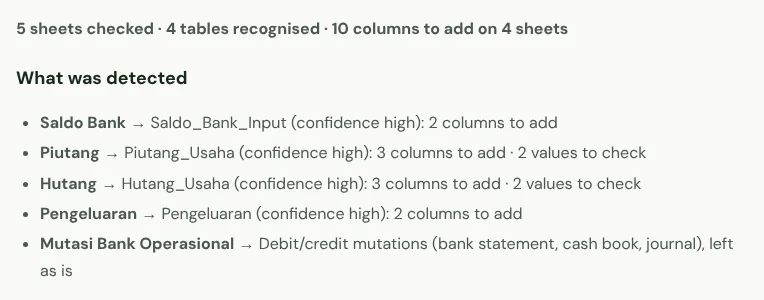
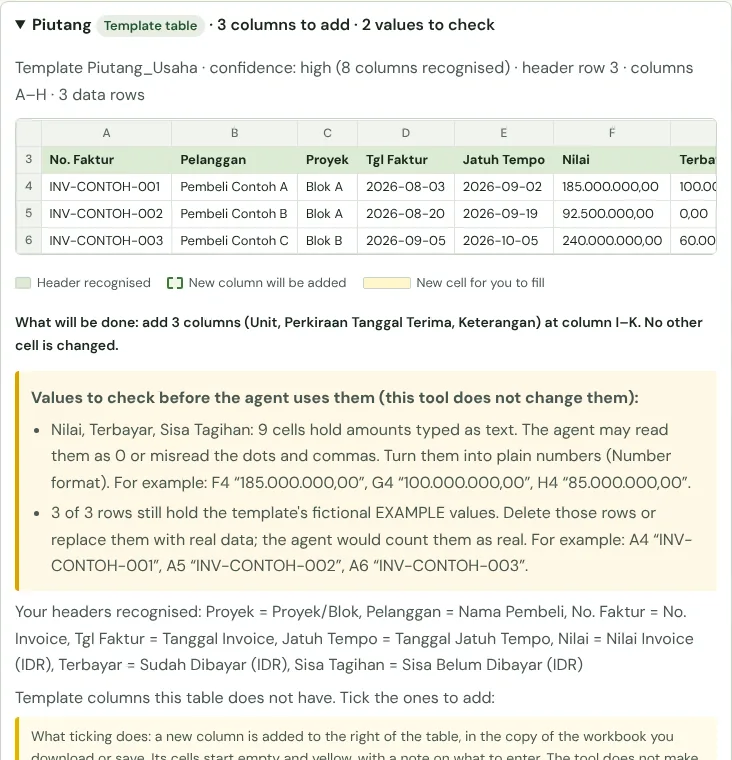
Already have the data in Accurate, Jurnal, Odoo, Zahir or your own spreadsheet? No need to retype it. Upload the workbook below: the tool matches your sheets to the template, adds the missing columns, and points out values the agent would misread, such as amounts stored as text. Your values and formulas are not changed, and the file isn’t sent anywhere.
Complete your workbook
Upload one .xlsx file containing all sheets, or select a Google workbook. Then choose how to complete it. Data is processed in your browser. Google writes happen only when you choose Save.
No workbook yet? Start from a template. Using your own workbook? Check it here so the columns the agent needs are added.
2. Choose the workbook
Use Google Sheets
Connect your account and choose which workbooks to share. You can still upload local files below.
Whole-workbook report
Every sheet is checked automatically. Tables are recognised from their column headers, not just sheet names. Correct any wrong detection on each sheet.
What was detected
Details per sheet
Links between sheets from matching IDs
This report counts existing data; it does not invent missing amounts or dates and does not total costs. A link is proven only when every ID finds one unique match.
Optional: fill blank cells from another workbook
Choose a second workbook of the same report type. Each table is matched to the same template table in that workbook using the template’s ID (for example Proyek/Blok + Unit + No. Invoice). Only blank cells are filled, including ticked new columns; rows without a match or with repeated IDs are skipped, and source rows are never appended. A workbook in another format (an old RAB into the Format Komander, say) works too: rows are matched by item name, and you tick each suggestion before it is filled.
Save to Google Sheets
Only blank cells are filled. Avoid simultaneous edits while saving. Changes since loading will be checked again.
Review all Google changes
New columns remain blank without source data. Existing values and formulas are not overwritten. Review column order and agent readiness after merging; this tool does not certify the workbook for agent import.
How to open the result in Google Sheets
Download the copy, upload it to Google Drive, and open with Google Sheets. Choose File → Save as Google Sheets. Your original workbook stays unchanged. For a new workbook with all template tabs, formulas and validations, use Create my Google workbook above.
Before you send it to the agent
- The EXAMPLE rows are replaced or deleted.
- Every balance and outstanding amount is measured at the same as-of date.
- Amounts are stored as numbers, not text ("Rp", dots or "jt").
- Invoice and bill numbers in Riwayat_Pembayaran match Piutang_Usaha and Hutang_Usaha.
- Draft and excluded bills are marked, not mixed in with Posted ones.
- Policies not yet approved are left blank.
Ready to use the Komander agents on your projects?
When your workbook is complete, apply for a pilot: we help connect your project data to the Finance, Cost and Scheduler agents and review the first reports with you.
Send to melwani@komander.ai. Your workbook check result is included when there is one; the workbook itself is not sent.
Common questions
What goes into a construction finance report?
Cash and bank balances, receivables from buyers or clients, payables to suppliers, planned progress billing, retention held back and expenses. Together they show how much money is available and how much is coming in and going out.
What is the difference between receivables and planned billing?
Receivables are invoices already sent but not yet paid. Planned billing is a progress payment you will invoice later, for example when progress reaches 40%. They are kept apart so nothing is counted twice.
What is retention in construction?
Retention is part of the contract value, usually 5%, that the client holds back until the maintenance period ends. It is the contractor’s money but is paid later, so it is recorded with its expected release date.
How often should a project finance report be updated?
Bank balances weekly, and receivables and payables whenever an invoice or payment happens. The full report is usually prepared monthly, with the same cut-off date on every tab.
Can I make it in Google Sheets or Excel?
Yes. The templates on this page download as Excel or open directly in your Google Drive, and the workbook checker reads both.